Arabic Text in Photoshop: Fix Broken Letters in One Paste
You paste a line of Arabic into a text layer and it falls apart: the letters stop touching each other and the words run the wrong way. Nothing is wrong with your text. Arabic text in Photoshop breaks because the text engine in front of you is missing two things Arabic needs, and both of them can be worked around in about ten seconds. The converter below does it without any settings at all.

Why Arabic text in Photoshop breaks in the first place
Latin text is simple to lay out: every letter has one shape, and the line runs left to right. Arabic asks for two things on top of that, and a text engine that does not provide them produces exactly the mess you are looking at. Understanding which of the two is failing tells you which fix you need, so it is worth thirty seconds.
Failure one: no shaping
Arabic letters change shape depending on where they sit in the word. The same letter has a different form at the start, in the middle, at the end and standing alone. Picking the right one is the job of a shaping engine. When Arabic text in Photoshop has no shaping engine behind it, every letter is drawn in its isolated form and the word stops looking like a word.
- The characters in your file are correct and unchanged.
- Only the drawing is wrong, which is why copying the text back out gives you perfectly good Arabic.
- No amount of changing the font fixes it, because the font is not the problem.
Failure two: no bidirectional layout
Arabic reads right to left. A text engine with no bidirectional support lays every run out left to right regardless, so the first word of your sentence ends up on the left where the last one belongs. This is a separate switch from shaping, which is why people who fix one of the two are often surprised that the Arabic text in Photoshop still looks wrong.
Which builds are affected
- Older CS releases sold outside the region shipped with no Middle Eastern support at all. There is no setting to turn on.
- Recent Creative Cloud releases have the support, but it is off by default outside Arabic-language installs.
- Middle Eastern editions handle it natively and you will never see this problem.
The converter: paste Arabic, get text that renders
This is the fastest fix, and the only one that works when the settings simply are not there. Paste your Arabic on the left. The right-hand box gives you a version that a text engine with no Arabic support will still draw correctly, because the shaping and the direction have already been applied to the characters themselves.
1 – Paste normal Arabic here
2 – Copy this into your text layer
Try one
The preview above is deliberately laid out left to right, with no shaping applied by your browser – the same way Photoshop will lay it out. If it reads correctly there, it will read correctly in your text layer. Turn Reverse order off if your Photoshop already handles direction and you only need the shaping.
How to use it
- Type or paste your Arabic into the left box. Our on-screen Arabic keyboard is one way to produce it if you have no Arabic layout installed.
- Press Copy for Photoshop.
- Create your text layer, then paste. Do not type into it afterwards.
- Set the font to something that carries Arabic, then size and position as normal.

What the output actually is
The converter swaps every letter for its presentation form – a separate set of Unicode characters, one per shape, in the Arabic Presentation Forms-B block – and then reverses the run. The result is text that is already laid out, so an engine that does no layout draws it correctly. This is the whole trick behind fixing Arabic text in Photoshop without touching a single preference.
- The output is real Unicode, not an image and not a hack character set.
- It is meant for display only. Never store it as your source copy.
- Search, spell-check and screen readers will not understand it, which is fine inside a poster and wrong inside a document.
The one real limitation
You cannot edit the pasted text. Adding or deleting a letter breaks the joins on both sides of the edit, because the shape of each character was chosen for the word it was in. Change the Arabic in the left box, convert again, and paste again. Treat the text layer as output, never as a working document.
What shaping means, concretely
Shaping is the half of the problem most people never hear named. It is worth understanding, because it explains why broken Arabic text in Photoshop looks the way it does, and because it tells you when a converter is doing its job properly.

Four forms, one letter
Here are ten common letters with each of their forms. Notice that six of them have no initial or medial shape at all.
| Letter | Isolated | Initial | Medial | Final |
|---|---|---|---|---|
| ب | ﺏ | ﺑ | ﺒ | ﺐ |
| ع | ﻉ | ﻋ | ﻌ | ﻊ |
| س | ﺱ | ﺳ | ﺴ | ﺲ |
| ه | ﻩ | ﻫ | ﻬ | ﻪ |
| ي | ﻱ | ﻳ | ﻴ | ﻲ |
| م | ﻡ | ﻣ | ﻤ | ﻢ |
| ا | ﺍ | – | – | ﺎ |
| د | ﺩ | – | – | ﺪ |
| ر | ﺭ | – | – | ﺮ |
| و | ﻭ | – | – | ﻮ |
The six letters that never connect forwards
- Alef, dal, thal, reh, zain and waw only ever take two forms.
- They join to the letter before them but never to the letter after.
- That is why you see legitimate gaps inside correctly shaped Arabic words – a gap is not automatically a bug.
- Our page on the Arabic letters goes through all twenty-eight.

Lam-alef, the ligature everyone forgets
Lam followed by alef is a single glyph in print, not two letters side by side. A converter that misses it leaves a stray vertical stroke in the middle of the word. The toggle on the tool above lets you turn the ligature off so you can see the difference, which is also a quick way to check whether Arabic text in Photoshop was pasted from a proper shaper or a naive one.

The built-in fix: the World-Ready composer
If your build has Middle Eastern support, you do not need the converter at all – you need two settings. They are both hidden, and neither is on by default.
Turning it on
- Open the Paragraph panel, click the flyout menu, and switch on Middle Eastern Features. On current Creative Cloud builds this is the only step that is genuinely hidden.
- On older releases you may also have to enable the Middle Eastern text engine under Preferences, Type and restart Photoshop first.
- Back in the Paragraph flyout, choose one of the World-Ready composers. That is the switch that turns shaping on.
- In the same panel, set the paragraph direction to right to left.
- Now type. Arabic text in Photoshop shapes and flows correctly from here on, and the extra Arabic controls appear in the Character panel as well.

When the option is not there
- Your build has no Middle Eastern support – use the converter above.
- You restarted, and it is still missing – that confirms it rather than disproving it.
- You are on a very old CS release – the feature did not exist in that product line outside the regional editions.
Direction and alignment are two more things
Half-fixed Arabic text in Photoshop almost always comes down to this pair. Paragraph direction decides the reading order. Alignment decides which edge the text sits against. They look like the same setting and they are not, which produces a very common half-fixed result: correct letters, right-aligned, still in the wrong order.
- Direction right to left, alignment right – normal Arabic.
- Direction left to right, alignment right – looks Arabic, reads backwards.
- Direction right to left, alignment left – correct order, unusual layout. Legal, and sometimes deliberate in design work.

Digits, dates and mixed Latin
Numbers are their own setting again, and they are the detail that gets Arabic text in Photoshop sent back by a client after everything else was right. Arabic is written with two different digit sets depending on the region, and Photoshop will not guess which one a client wants.
- Arabic digits – 0 1 2 3, standard across North Africa.
- Hindi digits – the eastern forms, standard in the Gulf and Egypt.
- Farsi digits – close to Hindi with three characters drawn differently.
- The setting lives in the Character panel, under Digits. Our page on Arabic numbers shows both sets in full.

Mixing Arabic and English on one line
A phone number, a brand name or a Latin word inside an Arabic sentence is the hardest case, because each run has its own direction. The converter keeps digit and Latin runs in their own order rather than reversing them character by character, so a year stays a year. It is still the situation most likely to need a human eye before you sign the file off.
Fonts that actually carry Arabic
All the shaping in the world is useless if the font has no Arabic glyphs, and this is the one failure in Arabic text in Photoshop that has nothing to do with the text engine. Boxes, empty rectangles or question marks mean the font, not the engine.
- Noto Sans Arabic – free, complete, unglamorous, always works.
- Amiri – free, classical Naskh, beautiful at large sizes.
- Cairo and Tajawal – free, modern, good for interface and poster work.
- Adobe Arabic – ships with Creative Cloud.
- More options, with samples, on our Arabic fonts page and in the calligraphy styles guide.

A warning about presentation forms and fonts
Some fonts implement the Arabic block properly but leave the presentation-form block thin. If the converter output looks worse than the original in one particular font, try Noto Sans Arabic before you conclude the converter is wrong.
Harakat, shadda and the marks above the letters
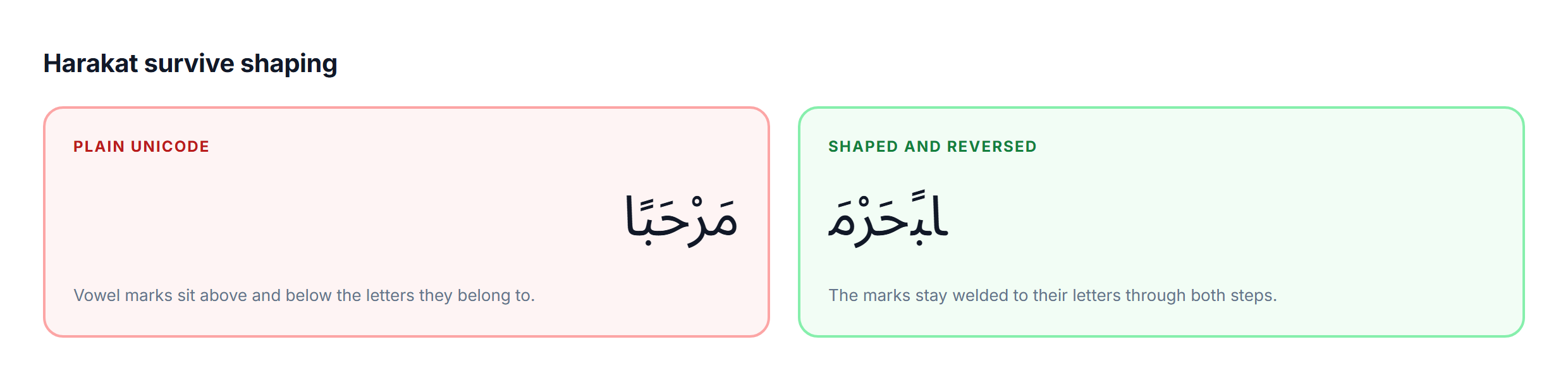
Marks are where a lazy shaper gives itself away, and where Arabic text in Photoshop can look almost right and still be wrong. Short vowels sit above and below the letters as combining marks. They are transparent to joining, meaning they never break a connection, and a correct shaper leaves them welded to the letter they belong to through both the shaping and the reversal.
- Poetry, Qur’anic text and learner material usually need them.
- News, branding and interface text almost never do.
- If they drift off their letters after pasting, the shaper mishandled them – ours groups each letter with its marks before reversing anything.
- Full detail on the harakat page, and you can type them directly with the harakat keyboard.
The four-step workflow that survives a real job
Fixing Arabic text in Photoshop once is easy. Doing it on a job with revisions is where people lose an afternoon. This order is what stops that.

Keep the source somewhere else
- Keep the real Arabic in a text file, a brief or a note – never only in the PSD.
- The text layer is a rendering, not a document.
- When a revision comes in, edit the source, re-convert, re-paste.
Why the order matters
Editing after pasting is the single most common way Arabic text in Photoshop goes wrong the second time. The joins were chosen for the word as it was, so any edit invalidates the characters on either side of it.
Outlining before you hand the file over
This is the last place Arabic text in Photoshop breaks, and it breaks on a machine that is not yours. A PSD with live type depends on the fonts installed on whatever machine opens it. If that machine substitutes a font with no Arabic, your careful work becomes boxes.
- Right-click the type layer and convert to shape once the text is final.
- Keep an un-outlined copy of the layer, hidden, for revisions.
- Exporting to PNG or JPG flattens everything and is always safe.
- Exporting to PDF keeps live text, so outline first or embed the fonts.
Illustrator, InDesign, After Effects and Figma
Nothing about any of this is unique to one application: the same two failures that break Arabic text in Photoshop show up across the Adobe line and beyond, and the same converter output fixes all of them, because it is only text.
| Application | Shapes Arabic? | What you do |
|---|---|---|
| Photoshop CC (any recent) | Yes, once enabled | Paragraph panel, World-Ready composer, then right-to-left direction |
| Photoshop CS6 and older, non-ME | No | Use the converter; there is no setting to switch on |
| Illustrator CC | Yes, once enabled | Same two settings, same panel |
| InDesign ME | Yes, natively | Built for it; nothing to enable |
| After Effects | Partial | Enable right-to-left in preferences, or use the converter |
| Figma | Yes, recent builds | Shaping is automatic; older files may need the converter |
Illustrator
Identical to Photoshop: the World-Ready composer and the paragraph direction control live in the same panel and behave the same way.
After Effects
Right-to-left support arrived later and is still partial in places. The converter is the reliable route for titles and lower thirds, and it has the side benefit that the text cannot re-flow mid-render.
Mistakes that survive all the way to print
- Fixing the direction, not the shaping, and shipping right-aligned isolated letters.
- Editing one character after pasting the converted text.
- Leaving Latin digits in a job that specified Hindi digits, or the reverse.
- Choosing a display font with no Arabic and letting the fallback pick something else.
- Using tatweel to stretch a word for fit – it is justification, not styling. The punctuation guide covers the marks that get misused this way.
- Never showing the final art to somebody who reads Arabic.

Symptom, cause, fix
Each symptom below has exactly one cause. Work down the table instead of guessing, and most Arabic text in Photoshop problems close in under a minute.
| What you see | Cause | Fix |
|---|---|---|
| Letters are separated, order is right | Shaping engine missing | Converter, or World-Ready composer |
| Letters join, but the words are back to front | Paragraph direction is left to right | Set direction to right to left |
| Both wrong at once | No Middle Eastern support at all | The converter on this page |
| Empty boxes or question marks | Font carries no Arabic glyphs | Switch to an Arabic-capable font |
| Numerals in the wrong script | Digit style setting | Character panel, Digits |
| Correct on canvas, wrong in the exported PDF | Live type re-flowed on another machine | Convert to shape before export |
| Correct until you edit one letter | Presentation forms cannot be edited | Edit the source, convert again |

Sources and further reading
Everything above can be checked against primary documentation:
- Adobe – Arabic and Hebrew type features in Photoshop
- Unicode – Arabic Presentation Forms-B code chart (U+FE70)
- W3C – what you need to know about the bidi algorithm
- MDN – unicode-bidi and how text direction is resolved
- Microsoft – developing OpenType fonts for Arabic script
- HarfBuzz – the open-source text shaping engine
- Richard Ishida – Arabic script notes
- ScriptSource – the Arabic script
- Wikipedia – Arabic script in Unicode
- Google Fonts – Noto Sans Arabic
- Amiri – the open Naskh typeface project
- Adobe Fonts – Adobe Arabic, the family bundled with Creative Cloud
Frequently asked questions
Why does Arabic text in Photoshop appear disconnected?
Because the build you are using has no Arabic shaping engine. Arabic letters change shape depending on their position in the word, and a shaping engine picks the right form for each one. Without it Photoshop draws every letter in its isolated form, which is why the word looks like a row of separate letters instead of a joined word. Broken Arabic text in Photoshop is a drawing problem, never a data problem.
Why is my Arabic text in Photoshop written backwards?
That is a second, separate failure. Arabic runs right to left, and a text engine with no bidirectional support lays every run out left to right. Shaping and direction are two different switches, which is why fixing one on its own still leaves the text wrong.
How do I fix Arabic text in Photoshop without the Middle Eastern version?
Paste the Arabic into the converter on this page and paste the result back into your text layer. The converter replaces each letter with the presentation form it should take and reverses the run, so a text engine that does neither renders it correctly anyway.
Which Photoshop versions support Arabic properly?
Any recent Creative Cloud release does, once you enable the World-Ready composer in the Paragraph panel and set the paragraph direction to right to left. Older CS releases sold outside the region shipped without those options at all.
Can I edit the converted text after pasting it?
No, and this is the main limitation. The converted text is a picture of correct Arabic made of presentation-form characters. Adding or deleting a letter breaks the joins around it. Edit the original Arabic, convert again, and paste again. Treat converted Arabic text in Photoshop as finished output.
Is the converted text still real Unicode?
Yes. Arabic Presentation Forms-B is a real Unicode block. It is legitimate for display but it is not how Arabic should be stored, so never use the output as the source copy of anything, and never paste it into a document somebody will search or edit.
Will the Arabic text in Photoshop survive export to PDF or PNG?
PNG always, because it is flattened. PDF keeps live text, so it can re-flow on a machine without your fonts. Convert the type layer to a shape before you hand the file over.
Does this work for Illustrator and InDesign too?
Yes. The converter output is plain text, so it pastes into any application with the same limitation, including Illustrator, After Effects and older versions of Figma.
Related tools and guides
If you got here because Arabic text in Photoshop broke, these are the pages people usually need next:
- Arabic keyboard online
- all our Arabic tools
- Arabic keyboard layout
- Arabic keyboard with harakat
- Arabic transliteration
- English to Arabic typing
- Franco Arabic typing
- Arabic typing test
- Arabic calligraphy generator
- Arabic calligraphy styles
- Arabic fonts
- Arabic letters
- Arabic harakat
- Arabic alphabet pronunciation
- Arabic punctuation
- Arabic numbers
- why Arabic is written right to left
- how to type hamza
- type Arabic in Word
- type Arabic in Google Docs
- type Arabic on WhatsApp
- Arabic keyboard for Windows
- Arabic keyboard on Mac
- Arabic keyboard for Linux
- Arabic keyboard for Android
- Arabic keyboard on iPhone
- Arabic keyboard for Chromebook
- Arabic keyboard widget
- Arabic grammar rules
- Arabic dialects
- Arabic slang
- beautiful Arabic words
- Arabic quotes
- Arabic greetings
- common Arabic phrases
- how to learn Arabic
- is Arabic hard to learn
- Arabic vs Persian
- Arabic vs Urdu
- clavier arabe
- clavier arabe AZERTY
- clavier arabe phonetique
- clavier darija
- ecrire son nom en arabe
- arabische Tastatur
- arapca klavye
- how a keyboard works
- the blog